Blog

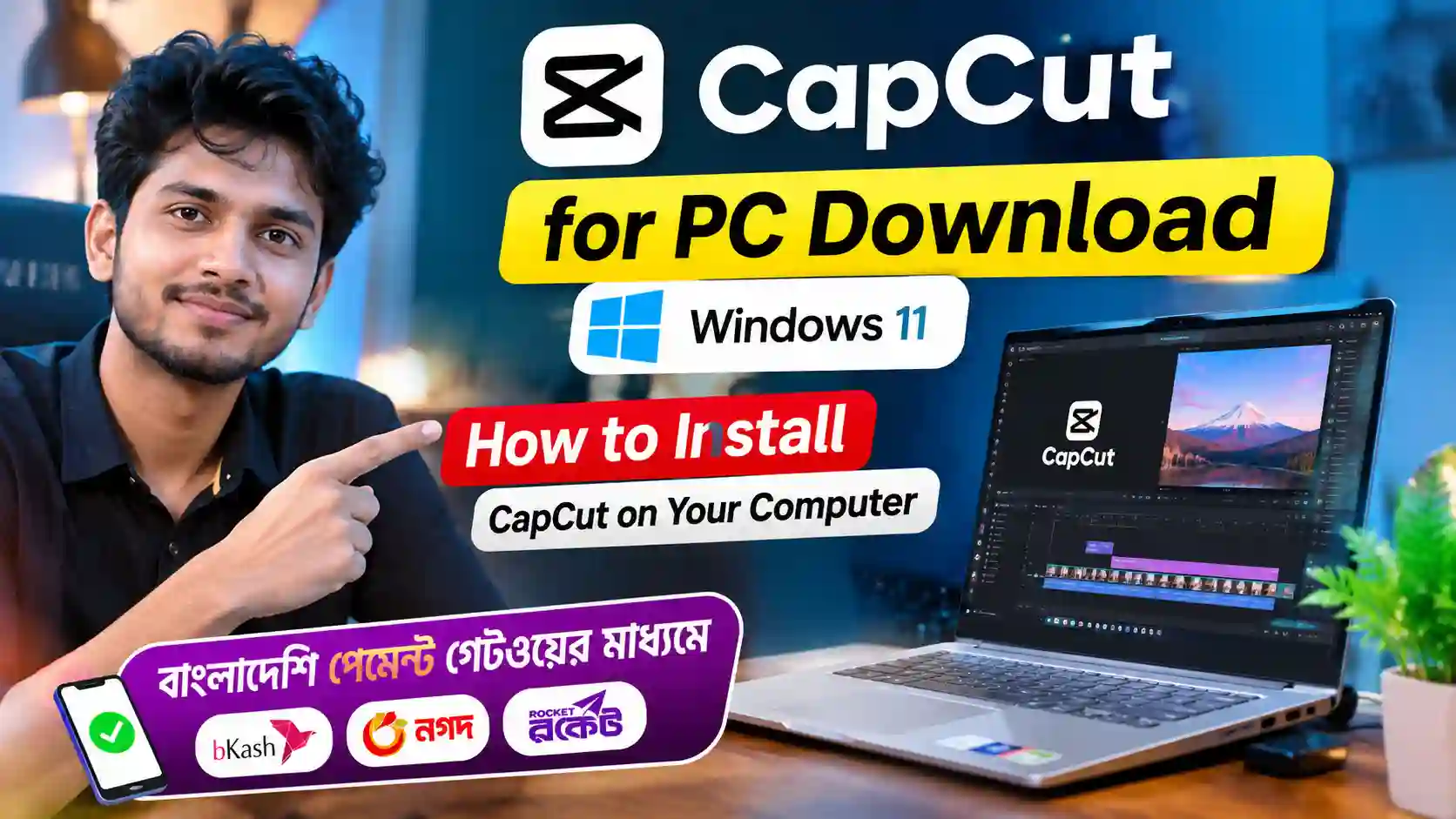
If you want to edit videos on a larger screen, CapCut for PC is a useful option to consider. The desktop editor gives Windows 11 users a simple way to cut clips, add text, adjust audio, apply effects, and create videos for social media. If you are looking for a CapCut for PC download, you can get the application through the official CapCut website or Microsoft Store. Both options provide a convenient way to install the desktop editor without relying on unknown third-party download websites.
CapCut is popular among content creators, video editors, freelancers, and social media users. Its desktop version offers a comfortable editing experience with more screen space and better control over video projects. Here is how to download and install CapCut on your Windows 11 computer.
What Is CapCut for PC?
CapCut for PC is the desktop version of the popular CapCut video editing application. It provides several tools for creating and editing videos, including trimming, cutting, transitions, text effects, audio adjustments, filters, and visual effects.
The application is useful for people who create YouTube videos, Facebook Reels, Instagram content, TikTok videos, promotional clips, and other digital content. Instead of editing everything on a smartphone, you can manage your video projects directly from your computer.
CapCut for PC also provides a convenient workspace for handling multiple video clips and making detailed changes. You can start with the available free editing tools and explore premium features if your projects require additional options.
CapCut for PC Download Windows 11
Option 1: Download CapCut from the Official Website
The official CapCut website is one of the easiest ways to download the desktop application. Follow these steps to install it on Windows 11.
- Open Google Chrome, Microsoft Edge, or another web browser.
- Visit the official CapCut website.
- Find the CapCut Desktop Editor download page.
- Click the Download for Windows button.
- Wait for the installer file to finish downloading.
- Open your computer’s Downloads folder.
- Double-click the downloaded
.exeinstaller file. - Follow the instructions displayed on your screen.
- Accept the required terms and complete the installation process.
- Once installation finishes, open CapCut from the Windows Start menu.
The installation process may look slightly different depending on the current application version. Always download the installer from the official CapCut website to avoid modified files, unwanted applications, and potentially unsafe downloads.
Option 2: Download CapCut from Microsoft Store
Windows 11 users can also install CapCut through the Microsoft Store. This is another convenient method because Windows manages the application download and installation.
Follow these instructions:
- Open the Start menu on your Windows 11 computer.
- Search for Microsoft Store.
- Open the Microsoft Store application.
- Type CapCut into the search bar.
- Find the official CapCut application.
- Check that the publisher is Bytedance Pte. Ltd.
- Click the Get or Install button.
- Wait until the download and installation are complete.
- Open CapCut from your Start menu.
Microsoft Store availability can vary depending on your country, device, and current app listing. If you cannot find the official application, try downloading it directly from the CapCut website instead.
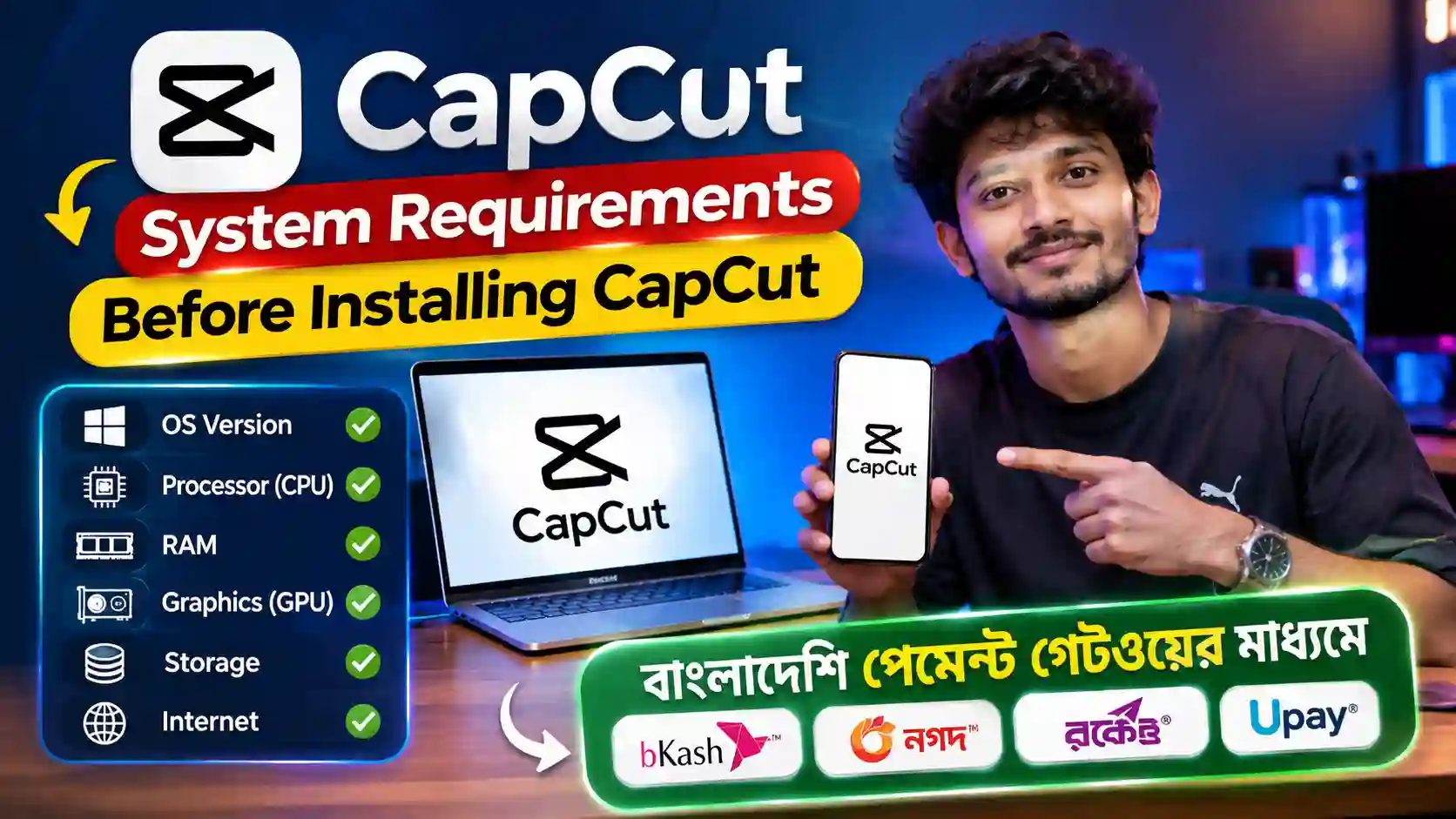
System Requirements Before Installing CapCut
Before starting your CapCut for PC download, check whether your computer can run the application properly. Video editing software can use considerable system resources, particularly when working with high-resolution videos, multiple layers, and advanced effects.
Make sure your Windows 11 computer has enough free storage space and meets the application’s current system requirements. A suitable processor, sufficient RAM, and compatible graphics hardware can help improve editing performance.
For a smoother experience, keep Windows updated, maintain enough storage space, and close unnecessary background applications while editing. If CapCut runs slowly, reducing the preview quality or working with smaller video files may help.
Is CapCut Pro Available for PC?
Yes, CapCut offers a paid Pro subscription with additional features beyond its free editing options. Depending on the current plan and region, premium access may include extra editing tools, effects, templates, and other advanced features.
If you want to purchase a CapCut Pro subscription, you can check the available offer at PrimeLoomHost.com. Before purchasing, review the subscription details, validity, supported devices, and account requirements.
The subscription offered through Prime Loom Host is intended to work on one computer and one mobile device. This arrangement can be useful if you edit videos on your Windows 11 PC but also want to use CapCut on your smartphone. Always check the current product terms before completing your purchase.
Final Thoughts
Downloading CapCut for PC on Windows 11 is straightforward when you use a trusted installation method. You can choose the official CapCut website or Microsoft Store to install the desktop application.
For beginners, the free version is a good starting point for learning video editing and creating social media content. If you need additional editing options, explore the available CapCut Pro subscription features before deciding to upgrade.
For a safe CapCut for PC download, always use the official website or verified Microsoft Store listing. If you are interested in premium access, visit PrimeLoomHost.com to check the available CapCut Pro subscription offer and its supported device details.